
OMIOCNC Machine Grounding Guide – Why & How to Ground Your CNC Router

Why Grounding?

We recommend that all users ground their OMIOCNC machine. Without proper grounding, the probe (e.g., tool setter) may fail to work correctly in certain environments, or you may encounter unexplainable abnormal behavior.

Note: If your machine operates normally without grounding (for example, the tool setting function works correctly and no anomalies appear), you may skip grounding temporarily. However, we recommend completing the grounding as soon as conditions permit to ensure long-term stable operation.

How to Ground Your Machine

Follow these steps to properly ground your CNC router:

  1. Prepare the material.
    Obtain a sufficiently long copper-core cable (cross-section area of at least 2.5 mm² is recommended).
  2. Connect to the machine.
    Attach one end of the copper wire to the underside of the machine worktable, or to any metal screw on the table. Make sure............
Read more

OMIOCNC Home Switch (Limit Switch) – Function & Troubleshooting Guide

What Is a Home Switch?

The component labeled as "Limit Switch" on OMIOCNC machines is actually a Home Switch. It is used to determine the origin of the mechanical coordinate system. Its primary function is to let the machine know its current position, so homing (returning to the origin) must be performed before every job to ensure accurate positioning.

Factory Testing & Important Notes

Every machine is thoroughly tested before shipment. If the machine does not respond normally, you can reinstall the software and settings files. After completing the setup, do not make any additional adjustments to Mach3.

Important: If you have two machines that are not exactly the same model and were not purchased at the same time, do not use the same computer to control both. Different models or machines from different production batches require different Mach3 configurations.

Why the Home Switch Doesn't Work – Three Steps to Check

If the homing function............

Read more

Recommended Ventilation & Coolant Guidelines for X8-2200L & X8-2200EPL CNC Routers

Recommended Ventilation & Coolant Guidelines for X8-2200L & X8-2200EPL CNC Routers

This series consists of desktop CNC routers equipped with water-cooled spindles. The X8-2200L connects to a computer via USB, while the X8-2200EPL uses a built-in standalone offline controller. Below are the recommended ventilation, cooling, and dust collection specifications for indoor or school laboratory environments.

1. General Room Ventilation

  • Temperature: Maintain 18–25 °C; avoid exceeding 30 °C.
  • Humidity: Maintain 40–70% RH; prevent condensation.
  • Clearance: Leave at least 30 cm (12 inches) of space around the machine to ensure adequate airflow.
  • Air Exchange: Provide 6–10 air changes per hour (ACH) in the room.

2. Spindle Cooling (Water-Cooled)

  • Coolant: Use clean deionized or distilled water mixed with a corrosion inhibitor. Replace............
Read more

How to Use the Z-Probe (Auto Tool Zero) – Step-by-Step Guide

Using the Z-Probe (Auto Tool Zero Device)

When machining flat plate materials, the Z-probe (also called an auto tool zero device or touch plate) helps you perform Z-axis tool setting quickly and conveniently. However, you must strictly follow the operating steps below; otherwise, the probe or the cutting tool may be damaged.

Step-by-Step Instructions

  1. Insert the Z-probe and measure its thickness.
    Plug in the Z-probe cable. Measure the actual thickness of the touch plate using a caliper, and enter that thickness value into MACH3 (in the appropriate settings field).
  2. Test the Z-probe (perform this test every time before actual use).
    Turn on the POWER switch. Clear the X, Y, and Z axes to zero. Click the "Auto Tool Zero" button in the software interface. The Z-axis will slowly move downward. Briefly touch the metal clip to the surface of the touch plate — the Z-axis should stop moving down and then rise by 10 mm. This confirms the probe is working............
Read more

OMIOCNC EPL Offline Controller Parameter Definition Guide

OMIOCNC Offline Controller Parameter Definition Guide

This document defines all editable parameters for the OMIOCNC offline controller. The parameter file is fully editable but must follow the formatting rules below. Each parameter has a predefined default value and a valid range — please stay within the specified range. If you are unsure about a parameter's purpose, keep the default value.

Parameter File Editing Rules

  • Only one parameter per line.
  • Format: #parameter_number=value. The # must be the very first character on the line, followed immediately by the parameter number, then =, then the value.
  • Any explanatory text after the value assignment is optional and unrestricted.
  • Each parameter has a defined assignment range — strictly follow the specified range.
  • Each parameter comes with a preset default value. Keep the default............
Read more

How to Troubleshoot the WSJ‑M3 Control Handle

How to Troubleshoot the WSJ‑M3 Control Handle in Mach3

This guide walks you through the most common fixes for the WSJ‑M3 wireless control handle. Follow the steps in order.

Important Prerequisite

The WSJ‑M3 control handle only works when the Mach3 software is already running on your computer. If the handle does not function properly, proceed with the steps below.

1. Replace the Batteries

Install fresh AA batteries (2 pieces) in the WSJ‑M3 handle. Low battery power is the most common cause of intermittent or completely unresponsive behavior. After replacing, turn the handle back on.

2. Check Complete Installation of Mach3 Plugins and Macro Files

Many users only copy ShuttlePro.dll but forget the macro files, causing some buttons on the handle to stop working. Please verify both items below:

2.1 Check the Plugin File............

Read more

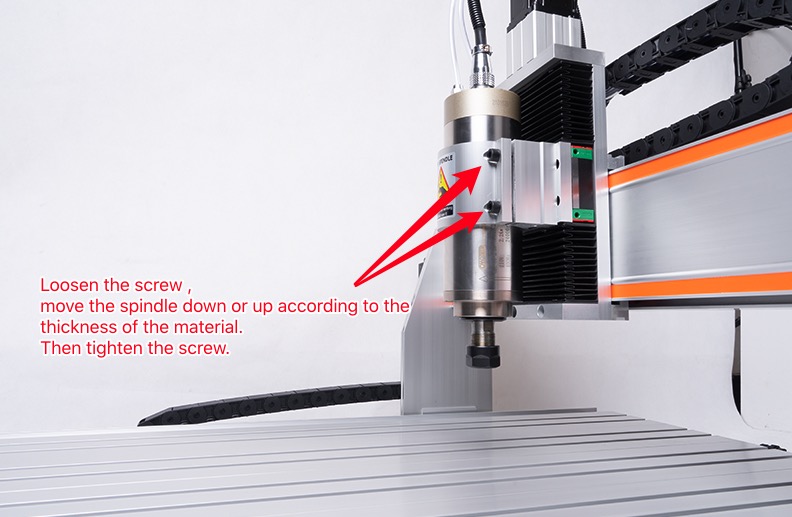
How to Adjust the Spindle Height When the Tool Cannot Reach the Material

Spindle Height Adjustment for Thin Materials

When working with thin materials, the spindle tool may not reach the workpiece surface. There are two easy solutions:

  • Lower the spindle: Loosen the screws on the spindle mount, slide the spindle downward until the tool tip contacts the material surface, then retighten the screws.
  • Add a sacrificial worktable: Place a flat plastic board (such as an acrylic sheet) underneath the material. This raises the workpiece so the tool can reach it, and also protects the machine table from accidental cuts.

Spindle Height Adjustment for Thick Materials

For thicker materials, simply lower the spindle by loosening its mounting screws and moving it downward until the tool reaches the material. No additional support board is usually needed, but always check that the tool has sufficient clearance above the workpiece............

Read more

How to Calculate the Pulse Count for the Planetary‑Geared A‑axis --- AH60‑XX80

Parameters of the AH60‑XX80 A‑Axis

The AH60‑XX80 is a planetary‑geared A‑axis (rotary axis) designed for OMIOCNC routers. To set the correct pulse count in your CNC controller, you need to know three key parameters:

  • Stepper motor step angle: 1.8° per full step, therefore 200 pulses are required for one full motor revolution (200 × 1.8° = 360°).
  • Driver micro‑step setting (default for X8 square‑rail USB machines): 8 micro‑steps per full step.
  • Planetary gear reduction ratio: 10:1 — the motor must turn 10 times to rotate the chuck once.

Calculating Pulses Per Degree (Default 8‑Micro‑Step)

Follow the formula below to calculate how many pulses are required for the chuck to rotate one degree:

Motor full steps per revolution: 200 Micro‑step multiplier: 8 Reduction ratio: 10 Pulses per motor revolution: 200 × 8 = 1,600 Pulses per chuck revolution: 1,600 × 10 = 16,000 Pulses per degree: 16,000 ÷ 360 ≈ 44.444
............
Read more

How to Manage CNC Router Chips and Debris Without a Central Dust Collection System

Why Not to Connect a Standard Vacuum to Your CNC Router

Over the years, many OMIOCNC users have asked whether they can connect a household vacuum cleaner to their desktop CNC router for dust and chip removal. While this seems like a convenient idea, we do not supply parts for such a connection — and here is why.

Reason 1: Insufficient Suction Power

A typical home vacuum cleaner lacks the suction needed to effectively remove debris during routing. Only a dedicated high-power woodworking vacuum (often called a “dust collector”) has enough airflow to capture wood chips as they are produced. Even then, it can only handle lightweight wood dust — it cannot reliably pick up metal chips or heavier particles. Using an undersized vacuum will quickly clog the hose and reduce cutting performance.

Reason 2: Unbearable Noise Levels

Woodworking vacuums are extremely loud. A machining session may last anywhere from tens of minutes to several hours. Running a high-decibel vacuum continuously creates noise that is not only unpleasant for you but also likely to disturb your neighbors — unless you have a separate, well-Soundproofing............

Read more

How to Prevent Milling Cutter Damage

How to Prevent Milling Cutter Damage?

Maintaining your milling cutters is essential for achieving high-quality results and extending tool life on your CNC router. Here are the common causes of damage and how to solve them.

Cause of damage

  1. Speed too slow, feed rate too fast.
  2. Workpiece installation unstable.
  3. Tool overhang too long, clamping part too short.

Resolvent

  1. Increase speed or reduce feed rate.
  2. Improve fixtures to ensure workpiece is stable.
  3. Minimize overhang, keep clamping area 4 times or more.

… … …............

Read more
Page
To Top
Home
Menu
Shop
Account
0 Cart